FitFoodie's barcode scanner turns the barcode on a packaged food into a logged entry with calories, protein, carbs, fat, fiber, sugars, sodium and saturated fat, at no cost. It is the part of FitFoodie you can use fully without paying, alongside water and weight tracking.
What the free barcode scanner does
Tap Barcode on the home screen, point your camera at the code, and FitFoodie looks the product up for you. When it finds a match, you land on the same review screen used for photo and text logging, with the product name, its nutrition and a grams or millilitres field so you can log what you actually ate rather than a whole pack.
No subscription is needed. You only need to be signed in (with Apple or Google), because the lookup runs on FitFoodie's server. It is part of the same app as the AI photo calorie tracking guide describes: three ways to log a meal, of which barcode is the free one.
How a scan works, step by step
- Scan. The scanner uses your back camera and reads standard retail barcodes. It reads a code once, so you don't get duplicate entries from holding the phone still.
- Check the shared cache. FitFoodie first checks a cache of products other users have looked up in the last 30 days. Each app language has its own cache entry.
- Open Food Facts. If the cache has nothing, the barcode goes to Open Food Facts. A product that is listed but has no energy or macro data counts as a miss, so you don't get an empty entry.
- USDA FoodData Central. Next, the branded-food records in the US Department of Agriculture's database.
- FatSecret. Last, the FatSecret Platform database.
- Review and save. Set the amount in grams or millilitres or use the 0.5× to 2× portion chips, check the numbers against the pack, pick a meal tag (Breakfast, Lunch, Dinner, Snack or Treat), and save.
If one source is down or slow, the lookup moves on to the next. Misses are not cached, so a product added to one of the databases later can be found on a later scan. When the app is set to Spanish, German, French or Arabic, product names and ingredients from Open Food Facts come back in that language where the database has them.
What you get from a scan
| Field | Notes |
|---|---|
| Product name | Editable on the review screen |
| Calories, protein, carbs, fat | From the database; if Open Food Facts lists a product without them, FitFoodie tries the next source |
| Fiber, sugars, sodium, saturated fat | Filled when the database has them |
| Ingredients | A list of names, when the database has one |
| Amount | Grams or millilitres, plus 0.5×–2× portion chips |
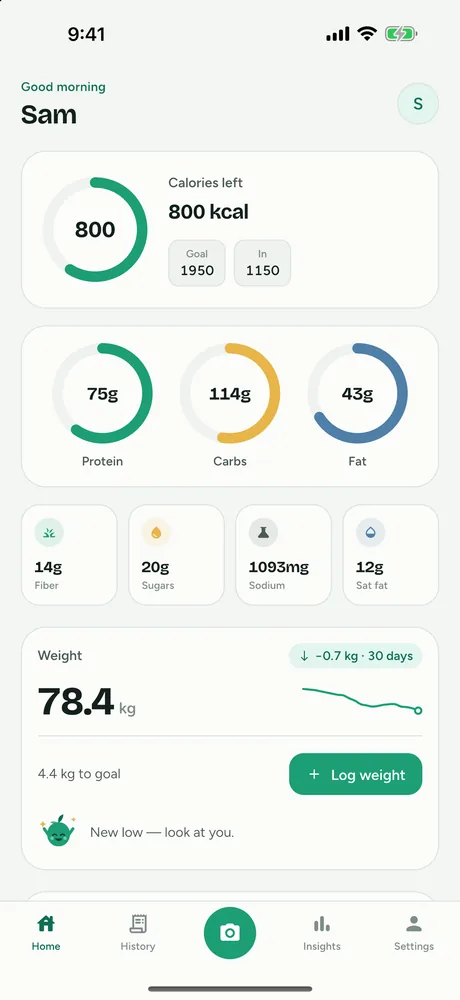
All of it feeds your daily calorie ring, macro rings and fiber/sugar/sodium/sat-fat tiles. To see how those daily targets are worked out, read about the macro tracker.
How accurate is barcode scanning?
A barcode lookup does not estimate anything: it returns the nutrition data a database holds for that product. That is usually more reliable than a photo estimate for packaged food, but it is only as good as the database entry. Recipes change, the same product can differ between countries, and some entries list values per 100 g while others list them per serving.
So the habit worth building is simple: glance at the nutrition label on the pack and compare the calories and serving size with what FitFoodie shows. If a number is off, tap it and fix it before saving. Every value on the review screen can be edited.
When to scan, and when to use something else
Scan anything that comes in a pack with a barcode: yogurt, cereal, protein bars, bottled drinks, frozen meals. You get label data rather than an estimate, which is the most dependable number FitFoodie can give you. For something you eat often, scan it once and then use one-tap re-add from History next time; that is also free.
For a meal made from several packaged foods, such as cereal with milk, scan each one as its own entry and set the amount you used. For fresh or cooked food without a barcode, you'll need Premium photo or text logging.
Honest limits
- A miss means no entry. If none of the sources has the product, you see "Product not found in database." There is no way to type a barcode number by hand, and no form for entering nutrition from scratch.
- Packaged food only. Home-cooked and restaurant meals have no barcode. For those, FitFoodie offers AI photo calorie counter and text description logging, both Premium.
- No photo is saved with a barcode entry.
- Needs a connection. Lookups run on the server, so they don't work offline.
- No food search by name. FitFoodie does not have a searchable food database you can browse.
Barcode in a photo (Premium)
If you are a Premium user and snap a meal photo that happens to show a product barcode, FitFoodie checks that barcode against the same databases first. When it finds a match, it shows the label data instead of an AI guess. If the match is the wrong product, tap "Not this product? Analyze the photo with AI" to get a normal photo estimate.
Free vs Premium
| Feature | Tier |
|---|---|
| Barcode scanning | Free |
| Water logging, weight tracking, reminders | Free |
| History, edit, delete with Undo, one-tap re-add of a past meal | Free |
| Daily dashboard and weekly days-on-target view | Free |
| AI photo analysis and AI text description | Premium |
| Premium Insights (trends up to a year) | Premium |
Looking for a MyFitnessPal barcode scanner alternative?
MyFitnessPal moved its barcode scanner to Premium in October 2022 and it is still Premium-only as of October 2026, according to its Premium page. Lose It! also lists its barcode scanner under Premium features on its App Store listing. MyFitnessPal does offer things FitFoodie doesn't, such as food search by name and voice logging (Premium). Our MyFitnessPal barcode scanner alternative page compares the two in detail.
Frequently asked questions
Is FitFoodie's barcode scanner really free?
Yes. Barcode scanning needs a signed-in account but no subscription. Only AI photo and text analysis (and Premium Insights, including its export) require Premium.
Which food databases does it use?
FitFoodie first checks its own shared cache of recent lookups, then Open Food Facts, then USDA FoodData Central, then FatSecret, stopping at the first one that returns the product. (An Open Food Facts listing with no calorie or macro data is skipped.)
What happens if a product isn't found?
You see "Product not found in database." There is no manual barcode-number entry and no form to type nutrition in from scratch. If you have Premium, you can photograph the meal or describe it instead.
Can I scan a barcode inside a meal photo?
Yes, as part of Premium photo logging: if your meal photo shows a product barcode that a database knows, FitFoodie uses the label data instead of an AI estimate.
Does barcode scanning work offline?
No. The lookup runs on FitFoodie's server, so it needs a connection.