FitFoodie lets you log a meal by typing a description instead of taking a photo: "two scrambled eggs on buttered sourdough with a flat white" becomes an entry with calories, protein, carbs, fat, fiber, sugars, sodium and saturated fat that you can check and edit. It's useful when the plate is already empty, the lighting is bad, or you'd rather not get your phone out at the table. Like photo analysis, text logging is part of Premium.
What text meal logging does
Tap Describe on the home screen and you get a single prompt: "What did you eat?" Write as much or as little as you like, up to 500 characters, then tap Analyze Meal. The AI (Google Gemini, running on FitFoodie's server) returns a dish name, a portion estimate for a typical serving, eight nutrient values and a list of ingredient names. Results come back in your app language: English, Spanish, German, French or Arabic.
It's the same review-and-save flow as every other entry, so a described meal sits in your log next to photo and barcode entries. For how this fits with the other input methods, see our guide to food photo nutrition tracking.
How it works, step by step
- Open Describe from the home screen.
- Type your meal, or tap a Quick fill chip such as "Grilled chicken & rice", "Lentil soup" or "Sushi rolls" and edit it.
- Analyze. FitFoodie checks your Premium status first; without Premium you see the paywall instead. The screen shows its progress (understanding your meal, estimating portions, calculating nutrition). The app says this usually takes 5 to 10 seconds.
- Review. Adjust the portion with the 0.5× to 2× slider or chips, tap any of the eight numbers to edit it, rename the dish, edit the ingredient list, and choose Breakfast, Lunch, Dinner, Snack or Treat.
- Recalculate if needed. If the AI misread the dish, change the dish name and tap the recalculate button next to it to run the estimate again from the new name.
- Save. The entry joins today's totals on the home dashboard.
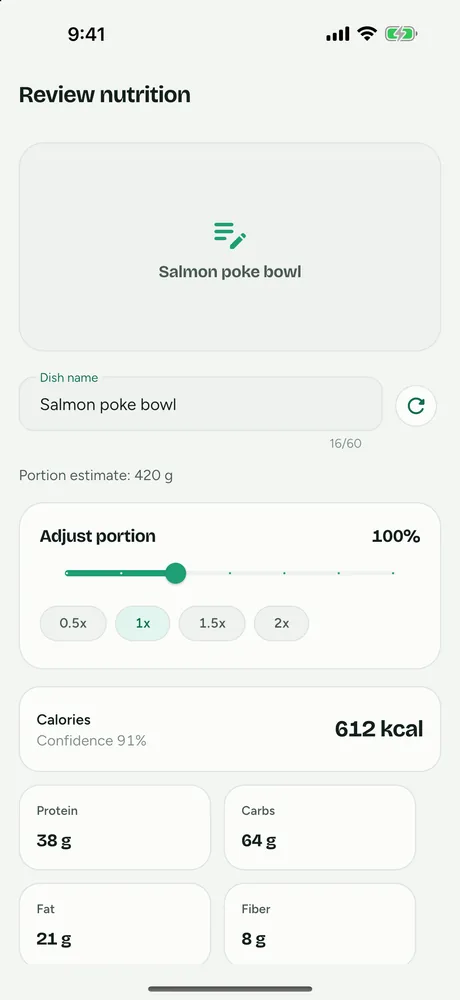
What you get
| Field | What it contains |
|---|---|
| Dish name | Editable, up to 60 characters |
| Portion estimate | Amount and unit (g, oz, ml, cup, slice or piece), scaled by 0.5×–2× |
| Calories, protein, carbs, fat | kcal and grams |
| Fiber, sugars, saturated fat | Grams (sugars are total, not added) |
| Sodium | Milligrams |
| Ingredients | A list of names you can add to or remove from |
All eight values count toward your daily targets, which the AI macro tracker page explains.
Tips for a better description
The AI can only work with what you tell it. A few extra words usually do more than anything else to make the estimate useful:
- Give amounts. "2 eggs", "a cup of rice", "half a pizza", "a large bowl". Without them, the AI assumes a typical serving.
- Say how it was cooked. Fried, grilled, roasted in oil, steamed. Cooking fat is one of the biggest hidden sources of calories.
- Name the extras. Butter, dressing, sauce, cheese, a sugary drink. These are easy to forget and easy to add.
- Be specific about the dish. "Chicken tikka masala with naan" gives the AI more to go on than "curry".
- One meal per entry. Each description produces one set of totals, so log a meal and a later snack separately to keep your meal tags meaningful.
- Check the portion afterwards. If the estimate assumed a smaller plate than yours, move the slider rather than rewriting the description.
Text logging is a natural fit when you eat out. Our guide on how to count calories at restaurants has more on estimating dishes you didn't cook.
Text or photo: which to use
A photo shows the AI what's on the plate; a description tells it things a photo can't, such as "cooked in two tablespoons of olive oil" or "with full-fat milk". Text works best when the food is already eaten or out of shot, when a dish hides its ingredients (a wrap, a stew, a smoothie), or when you know exact amounts. A photo works best when portion size is the main question and you'd rather not guess it in words. Both are Premium and both land on the same review screen.
Honest limits
- It's an estimate. A description leaves out things only a scale or a label would tell you. FitFoodie doesn't publish an accuracy figure; edit the numbers when you know better.
- Per meal, not per item. You get one set of totals for the whole description, not a separate count for each food you listed.
- Editing ingredients doesn't recalculate. Adding or removing an ingredient chip changes the list only. Edit the numbers directly or use the recalculate button after renaming the dish.
- Needs a connection. The analysis runs on a server, so it doesn't work offline.
- Rate limited. Premium AI analyses are capped at 10 per minute and 150 per day per user.
- Your text goes to Google Gemini for analysis.
- No saved or favourite meals. To log something you've eaten before, re-add it from History in one tap (free) instead of typing it again.
If the AI can't make sense of a description, you'll see "Couldn't analyze that meal. Please rephrase and try again."
Free vs Premium
| Feature | Tier |
|---|---|
| Describe a meal (AI text analysis) | Premium |
| AI photo analysis | Premium |
| Recalculate from dish name, re-analyze a saved entry by description | Premium |
| Barcode scanning, water and weight tracking | Free |
| History, editing, one-tap re-add of a past meal | Free |
Prefer to point a camera? You can snap a photo instead: same review screen, same eight nutrients.
Nutrition values in FitFoodie are AI estimates for information, not a substitute for professional medical advice.
Frequently asked questions
Is text meal logging free?
No. Describing a meal is an AI feature and part of Premium, like photo analysis. Barcode scanning, water and weight tracking, and re-adding a past meal are free. The yearly plan starts with a 7-day free trial for new subscribers.
How long can a meal description be?
Up to 500 characters in the app, which is plenty for a full plate with quantities and cooking method.
How long does it take?
The app says it usually takes 5 to 10 seconds. You need an internet connection, because the analysis runs on FitFoodie's server using Google Gemini.
Can I describe several dishes in one entry?
Yes, but the result is one entry with one set of totals for everything you described. If you want separate entries for, say, a main and a dessert, describe them one at a time.
Can I fix an entry I already saved?
Yes. Open it from History to edit the name, portion, numbers, tags and ingredients. Premium users can also re-analyze a saved entry from a new description.